Helping Material about

Screenshot
How can we restrict the API key for certain domain?
We can't restrict the API key to a certain domain right now.
How long the URL is cached?
For the free trial, we only keep the shot image (depending on the ttl) up to 30 days.
For the paid tier, we keep it for 6 months.How to render a screenshot?
GET : https://shot.screenshotapi.net/v3/screenshot?token=TOKEN&url=URL&[OPTIONS]
The following options for the API call are:
TOKEN: The TOKEN or your API key should be replaced by your real ScreenshotAPI.net API, you can find your API key after you Sign Up or Log In to the service via the Dashboard page.
Note: If for any reason you need to get a new API key, simply click 'Roll API Key' in the 'Settings' card on the Dashboard. This will issue you a fresh API key and revoke access from the previous key.
URL: Website URL for the site you would like to render for the screenshot. We support a wide variety of websites types, such as single page apps, very long-content, and sites that require lazy loading or delays ensuring accurate and complete screenshots of these unique sites.
OPTIONS: Options indicates the different URL parameters keys and values that can be used to render your 'perfect' screenshot.Can we grab screenshots in bulk from a CSV column?
Yes, we do! ScreenshotAPI.net can help you grab bulk screenshots from a CSV column.
This feature is only available on our paid tier!Is there a way to set the browser timezone in ScreenshotApi’s request?
Currently the timezone is default by UTC+0. There is the option to setup the geolocation, but not to set the browser timezone.
How to use / customize specific fonts with your API?
There is a functionality for injecting css into the screenshot.
@import url('https://fonts.googleapis.com/css2?family=Splash&display=swap');
body
{
font-family: 'Splash', cursive;
color:blue !important;
}
h1,h2,h3,h4,h5
{
font-family: 'Splash', cursive;
color:red !important;
}
All headings or at least some of them should be appear with the custom font 'splash' and a different color.How to take a Screenshot in an Authenticated Page?
There's not a single way to take screenshot from a site that requires authentication. There are multiple ways to implement auth in a site so you need to find out which one the site you're looking to shot is using and then try to use our parameters to complete or shortcut the authentication flow.
Can I take a screenshot of a protected page or a page behind a login screen?
Yes, you can capture a screenshot of a protected page. For detailed guidance on handling authentication and capturing content behind protected screens, please refer to the following article: How to Take a Screenshot of a Protected Page.
How can I get rid of cookie banners or ads that covers a lot of my screenshot?
You can pass the parameters no_cookie_banners=true and block_ads=true in your API request. These options automatically remove most cookie consent banners and block ad scripts before the screenshot is captured, resulting in a cleaner output.
How to take a full page screenshot of a spreadsheet?
Setting the appropriate browser height size is the best way to capture a screenshot of the entire spreadsheet. If you don't know the exact height, you can use an approximation.
Also, make sure to check 'full page' option.
What is 'Inject JS code'?
Inject Javascript field is a javascript code that the browser can execute before taking the screenshot for example:
Try taking a screenshot of xo.capital and paste this code in the "Inject JS code" input of the query builder: document.getElementsByClassName('display-heading')[0].innerHTML = 'This is a test to help the customer'
This is the outcome of the screenshot you're getting: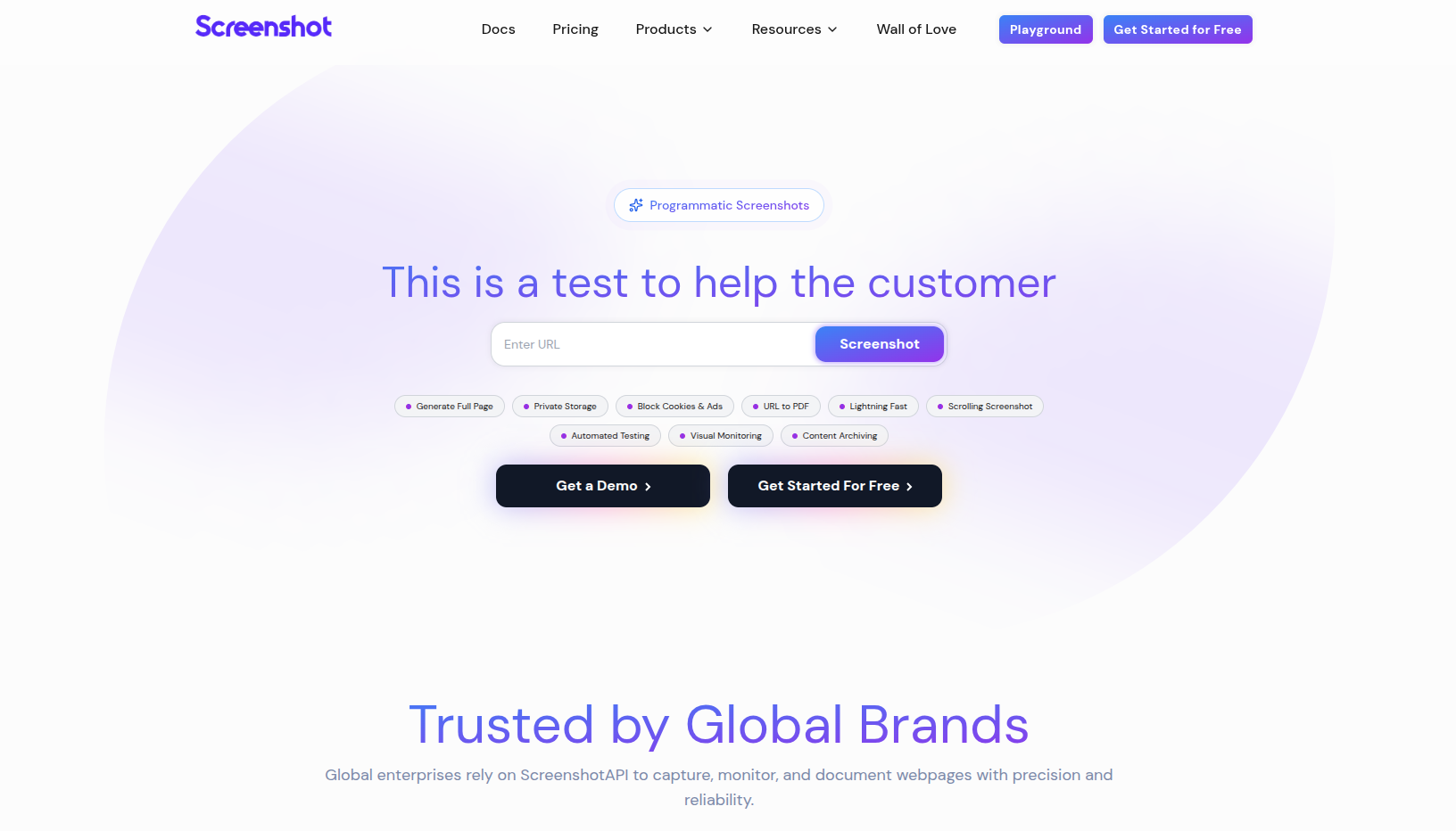
What does 'Destroy Screenshot' means?
Destroy screenshot means that we wont store the screenshot.
Can I take a screenshot of the mobile view?
For the Mobile view, you can use the browser width and height fields.

You can follow these example dimensions:
Can we take a screenshot of a dark / light mode version of the website?
Our query builder offers advanced features that include a dark mode option. By clicking the dark mode option, it will allow you to take screenshots in that specific mode.
Please note that this functionality will only be available if the website offers a dark mode interface option.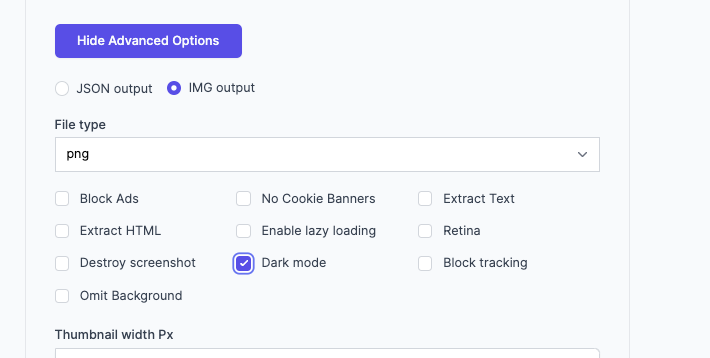
Can we delete a stored screenshot?
Users currently are unable to delete the screenshots by themselves, but we can certainly help you do so.
You can just send us a request via ticket, provide us the URL and we'll execute it.
Billing & Subscriptions
How do you define a unique screenshot?
A unique screenshot is defined by the exact URL and parameters that were used for the render.
What if i need to cancel my account?
If you need to cancel your account for any reason you can simply do it from in the app's billing portal or by contacting us via email at info@screenshotapi.net or by using the chat tool in the bottom right of the screen.
What level of support can i expect?
We highly value our customers. Most support requests get answered within 24 hours but should never be longer than 3 working days.
Where is my data stored and is it safe?
The ScreenshotAPI.net team uses industry gold standard approaches to ensure your data is safe. Data is encrypted at rest and in-transit. Our tool leverages Google Cloud to ensure we offer the best-in-class solution for your screenshot needs, scalability, and the highest levels of security.
Do you offer 24/7 support?
While we do not have 24/7 support, the team is highly responsive (generally 24 hours). If you have special support needs please contact us to discuss an enterprise level plan and the level of support you need, the ScreenshotAPI.net team is dedicated to making your rollout a success.
What if I go over my quota?
Please do not worry, our service will not suddenly block you if you go over your quota. All overages are charged according to your plan. The Screenshot API team will reach out and discuss your options if you require another plan or approach to your screenshot needs.
Do you cache screenshots and do requests cached count toward my quota?
Unless you opt into only rendering 'fresh' screenshots we will cache them. Cached screenshots will not count toward your quota.
Can I pay via PayPal?
Unfortunately, our payment portal, Stripe, does not accept PayPal.
You can see other payment methods in this article.How to add a team member?
Before adding a team member, make sure that they don't have an existing account with ScreenshotAPI.
You can add a team member by following the instructions below: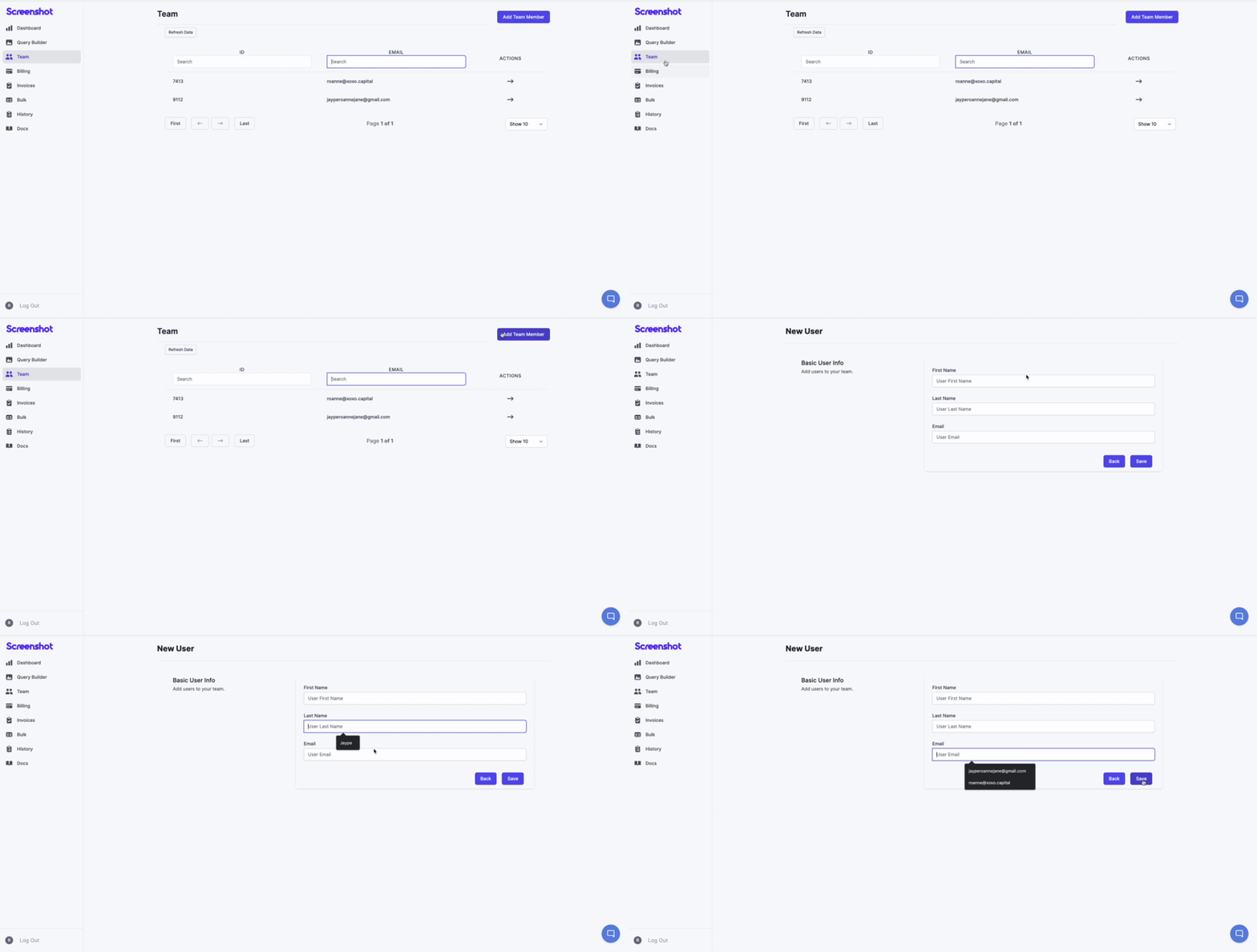
Rate & Limiting
Does ScreenshotAPI have a rate limit for capturing screenshots per second or minute?
Yes, ScreenshotAPI.net enforces a rate limit ranging from 20 to 80 requests per minute, depending on your subscription plan.
What Happens if I Exceed my 100 Free Screenshots?
You'll receive a message once you use all 100 screenshots included in your 7-day free trial.
To keep capturing, you can go to Billing tab and choose the best plan for you.Do failed screenshots count against the usage limitations on the plan?
No, only successfully rendered screenshots are counted towards the usage limits of your plan. Failed screenshot attempts do not impact your plan's quota.
Do cached screenshots count against the usage limitations on the plan?
Only unique and fresh screenshots, defined by a unique combination of options, are counted toward your plan's usage.
How long are cached screenshots stored?
ScreenshotAPI.net stores cached screenshots for a duration of 30 days. After this period, the cached screenshot is cleared and may be rerendered if requested again.
Will I be notified when I am nearing the monthly screenshot limits?
Yes, you will receive email notifications when your usage reaches 80%, 90%, and 100% of your screenshot limit.
What happens if I almost use up my monthly quota?
If you approach or exceed your monthly quota, you will receive an error with the code screenshot_limit_reached and a status code of 403. This indicates that the screenshot limit for your plan has been reached.
What happens to the data I entered after the trial period expires?
After the trial period expires, your data will be removed after 30 days.
Errors & Status
How can I prevent hitting the screenshot_limit_reached (403) error?
To prevent hitting the screenshot_limit_reached (403) error, you can upgrade your plan to increase your screenshot quota, allowing you to exceed the current limits.
Why am I still getting the url_required (400) error despite providing a URL?
The url_required (400) error may occur if the url parameter is missing or misnamed (case-sensitive).
Additionally, ensure that the URL you provide starts with https://, as this is a required format.How can I avoid invalid_clipped_area (400) error?
The invalid_clipped_area (400) error occurs when the specified clipping area, such as the width, height, or coordinates, exceeds the bounds of the page.
To avoid this error, ensure that the clipping area's dimensions fit within the page size and validate the coordinates to avoid negative or oversized values.
Tools like the browser's developer console can help verify the specified values and ensure they align with the page layout.What does the Invalid_geolocation_parameter (400) error mean, and how can I resolve it?
The Invalid_geolocation_parameter (400) error occurs when the provided geolocation parameters are outside the valid range.
To resolve this issue, ensure that the latitude value is between -90 and 90, and the longitude value is between -180 and 180.
Cookies & Captcha
Does this API also handle captchas?
You need to figure out how the browser knows that user already passed the challenge (sometimes a cookie) and then pass those cookies to ScreeenshotAPI.
How can I avoid consent forms for cookies in screenshots?
You can avoid consent forms for cookies by enabling the no cookies banners option and setting it to true while capturing the screenshot. This ensures that cookie banners are bypassed during the screenshot process.
Can I add custom cookies while taking a screenshot?
Yes, you can add custom cookies while capturing a screenshot. This allows you to simulate a specific user session or customize the browsing context according to your requirements.
Be sure to configure the cookies properly in your request parameters.Can I capture screenshots of pages that require cookie-based authentication?
Yes, you can capture screenshots of pages that require cookie-based authentication by setting custom cookies in your request. This allows you to simulate an authenticated session and access pages that are otherwise restricted.
Is it possible to clear cookies before taking a screenshot to simulate a fresh session?
Yes, you can clear cookies before capturing a screenshot to simulate a fresh session. Ensure no cookies are included in the request to create a clean browsing context.